ST StellarStudio
Jump to navigation
Jump to search
The ST StellarStudio software development tool is a GNU/Eclipse-based development environment for SR5x and SR6x device families and comes with integrated J-Link support.
Using an ST StellarStudio project with J-Link
For detailed instructions on how to install and use StellarStudio IDE, please contact ST.
This article relies on J-Link Software and Documentation Pack installed in C:\Program Files\SEGGER\JLink\.
SR5x Device Family
Import example project
- Open ST StellarStudio.
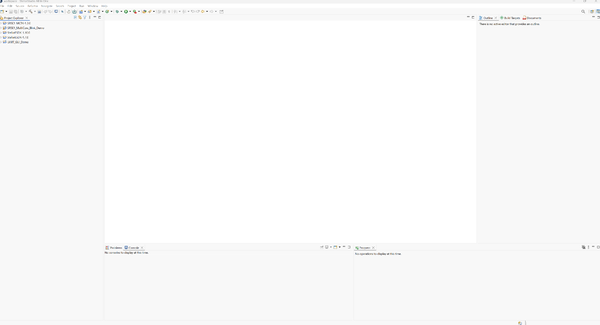
- Click Import StellarStudio Demos.

- You can select your eval board and click next.
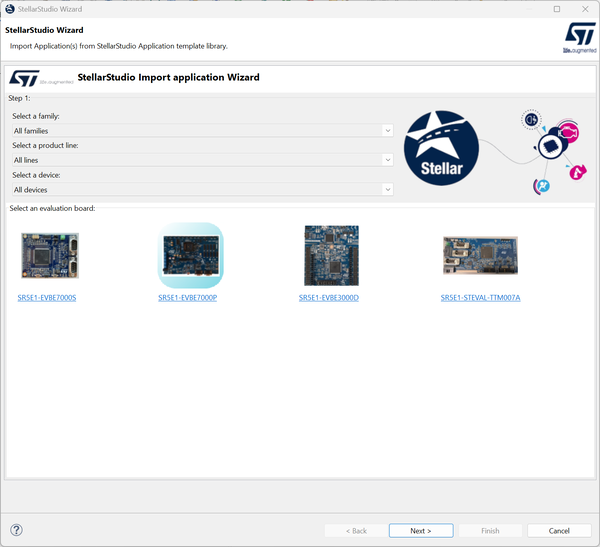
- Select your demo application and click next.
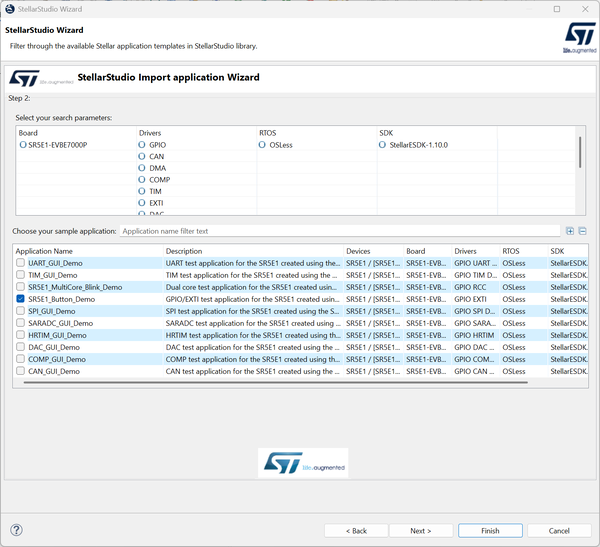
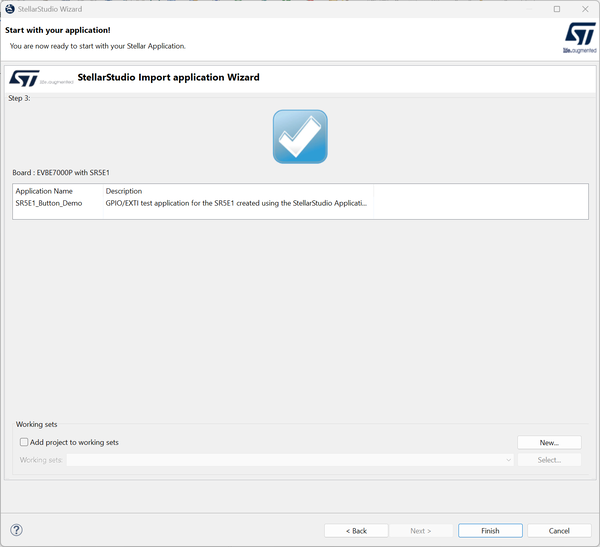
- Click Finish.


Debugging single core project
- Build your application.
- Open Debug Configurations and select the configuration for your demo application (here: GDB SEGGER J-Link Debugging->jlink_SR5E1_Button_Demo).

- Adjust the settings if needed and click on Debug.
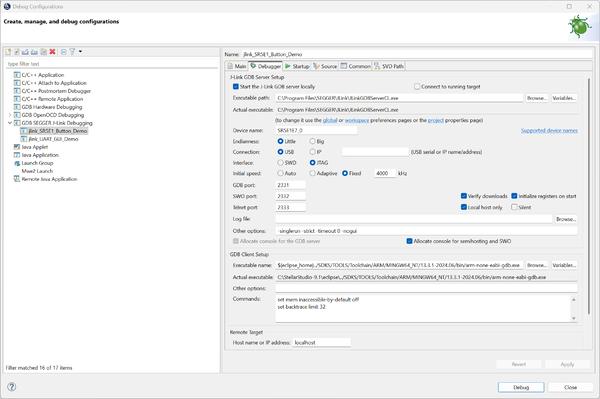
- Application is downloaded to the target and debugging starts.
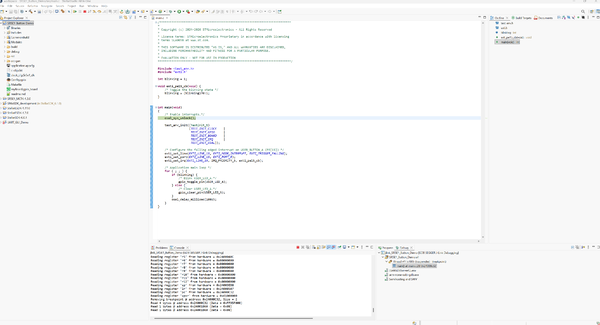


Debugging multi core project
- Build your application.
- Open Debug Configurations and select the configuration for your demo application(here: GDB SEGGER J-Link Debugging->jlink_core2_SR5E1_MultiCore_Blink_Demo).

- Adjust the settings if needed and click on Debug.

- The application is downloaded to the target and debugging starts.
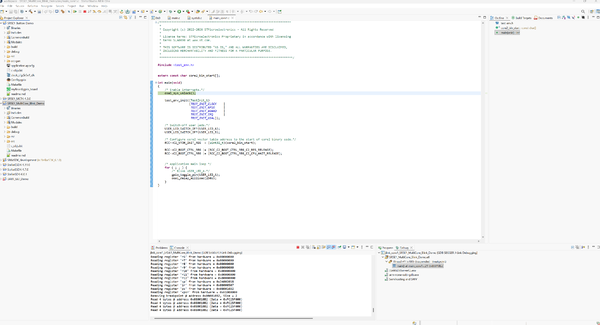


SR6x Device Family
Import example project
- Open ST StellarStudio.
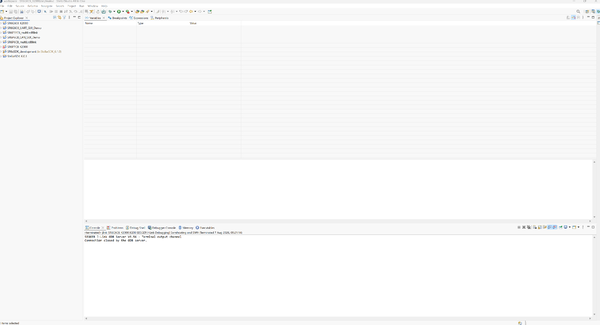
- Click Import StellarStudio Demos.
- You can select your eval board and click next.
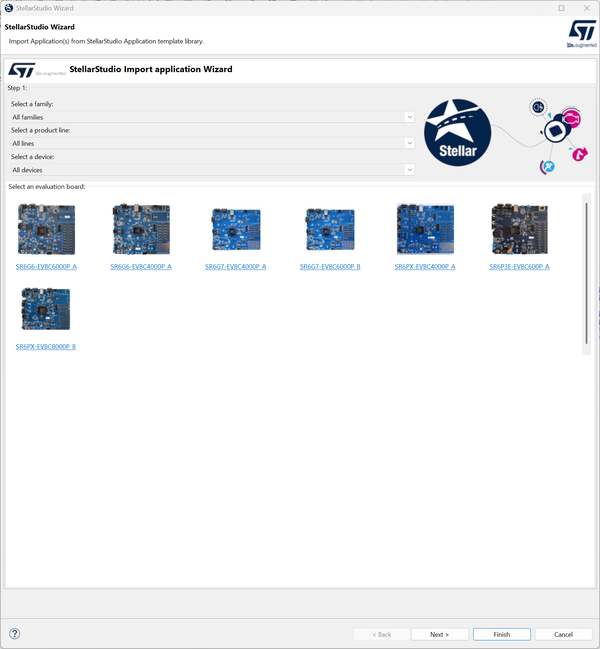
- Select your demo application and click next.
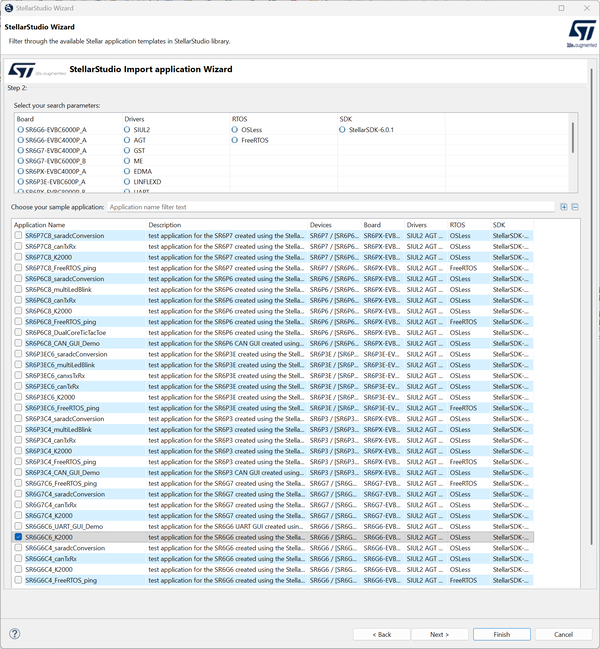
- Click Finish.
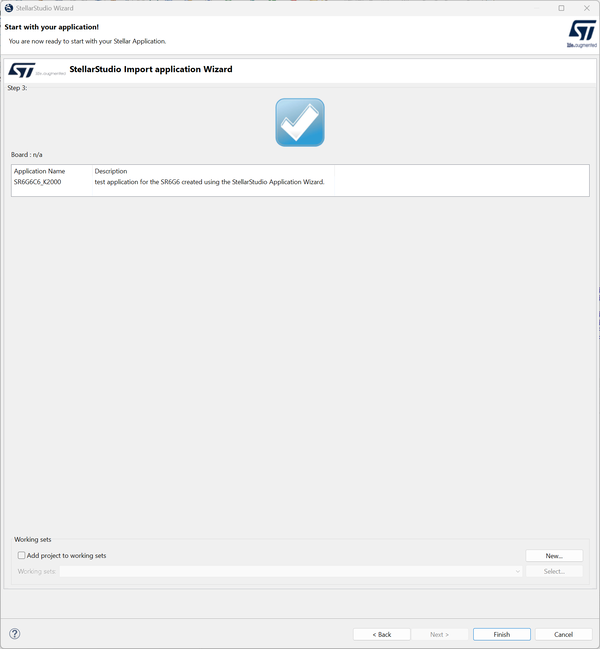


Debugging single core project
- Build your application.
- Open Debug Configurations and select the configuration for your demo application(here: GDB SEGGER J-Link Debugging->jlink_SR6G6C6_K2000).
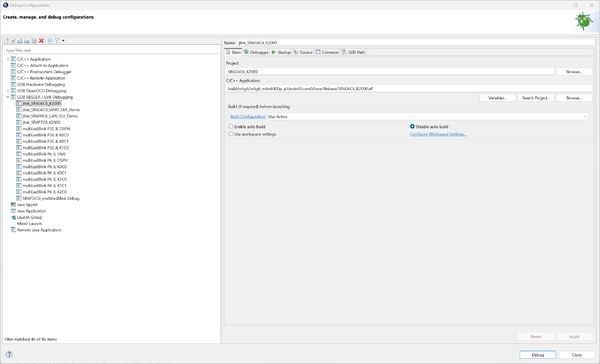
- Adjust the settings if needed and click on Debug.
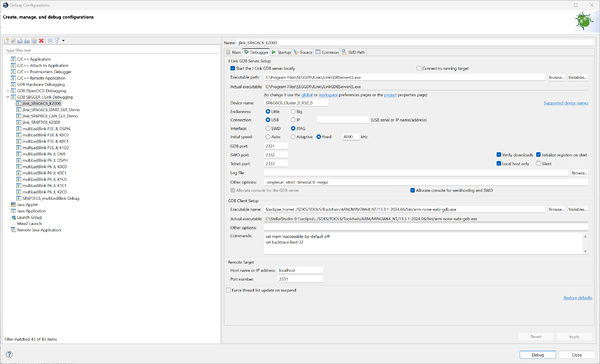
- Application is downloaded to the target and debugging starts.
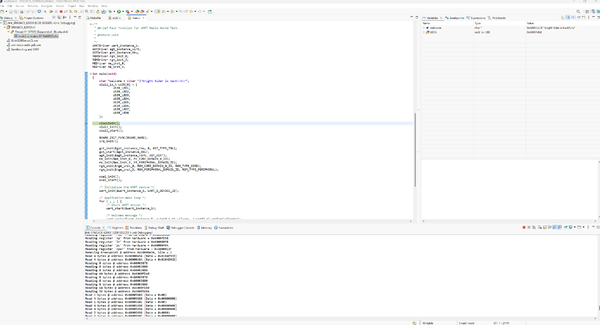


Debugging multi core project
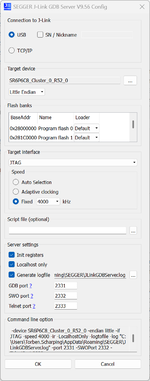
Currently J-Link GDB Server has to be started manually.
- Build your application.
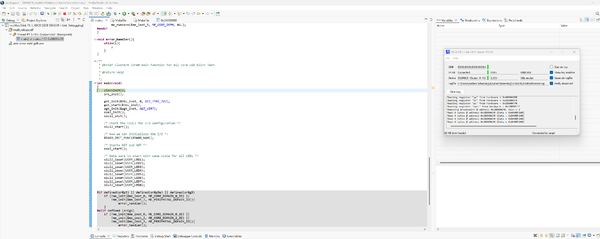
- Start the J-Link GDB Server with the correct settings.
- Open Debug Configurations and select the configuration for your demo application(here: GDB SEGGER J-Link Debugging->multiLedBlink P6 JL K0C0).
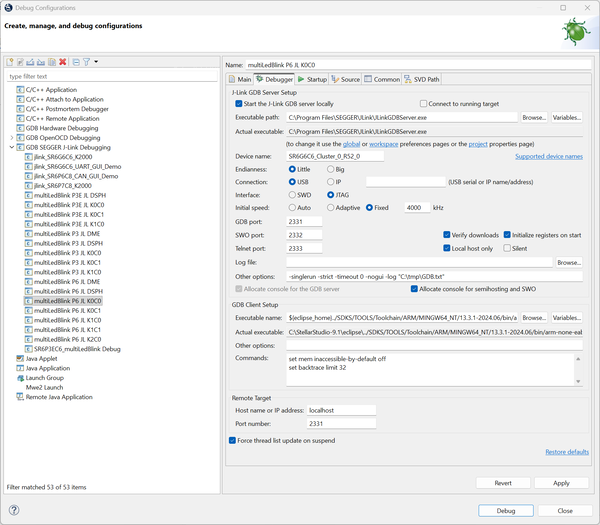
- Disable Start the J-Link GDB Server locally and adjust any additional settings if needed.
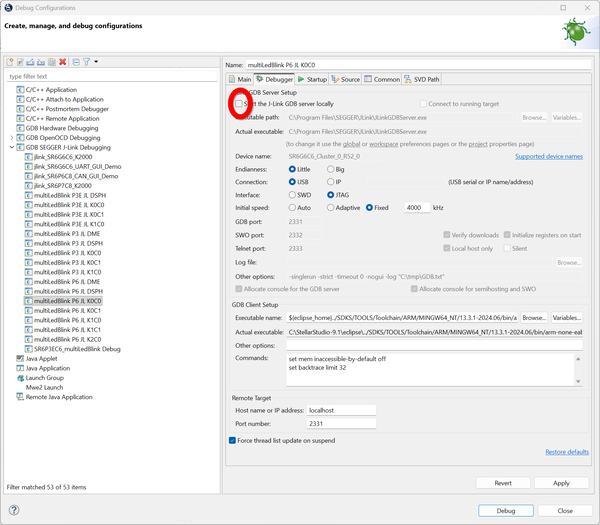
- The application is downloaded to the target and debugging starts.


Supported Versions
| Version | J-Link support SR5x | J-Link support SR6x |
|---|---|---|
| 9.1.0 |  |
|
StellarStudio with support for SR6x devices is available on request from ST.
StellarStudio with support for SR5x devices is available from ST here.